
Customize Badge per Discount
Available only on the Advanced plan
By default, Discounts Display Pro uses your global badge and price appearance settings across all supported discounts. This is the best option when you want a consistent look throughout your store.
If you’re on the Advanced plan, you can also customize the appearance of individual discounts. This gives you more flexibility when you want one promotion to stand out with its own message or colors, without changing how the rest of your discounts look.
For example, you might want to show:
- Black Friday {amount} OFF
- Last units {amount} OFF
- Summer Sale
- Back to school
- Limited time {amount} OFF
This feature is useful when different campaigns need a different look or message, while your other discounts continue using your default global settings.
What you can customize per discount
When you customize a discount individually, you can override the following settings for that discount only:
- Badge text
- Badge background color
- Badge text color
- Discounted price color
This means you can create a more tailored promotion for specific offers, while keeping everything else unchanged.
How to open the per-discount customization settings
To customize a specific discount, go to the Manage discounts page in the app.
There, you’ll see a Customize button next to each supported discount.
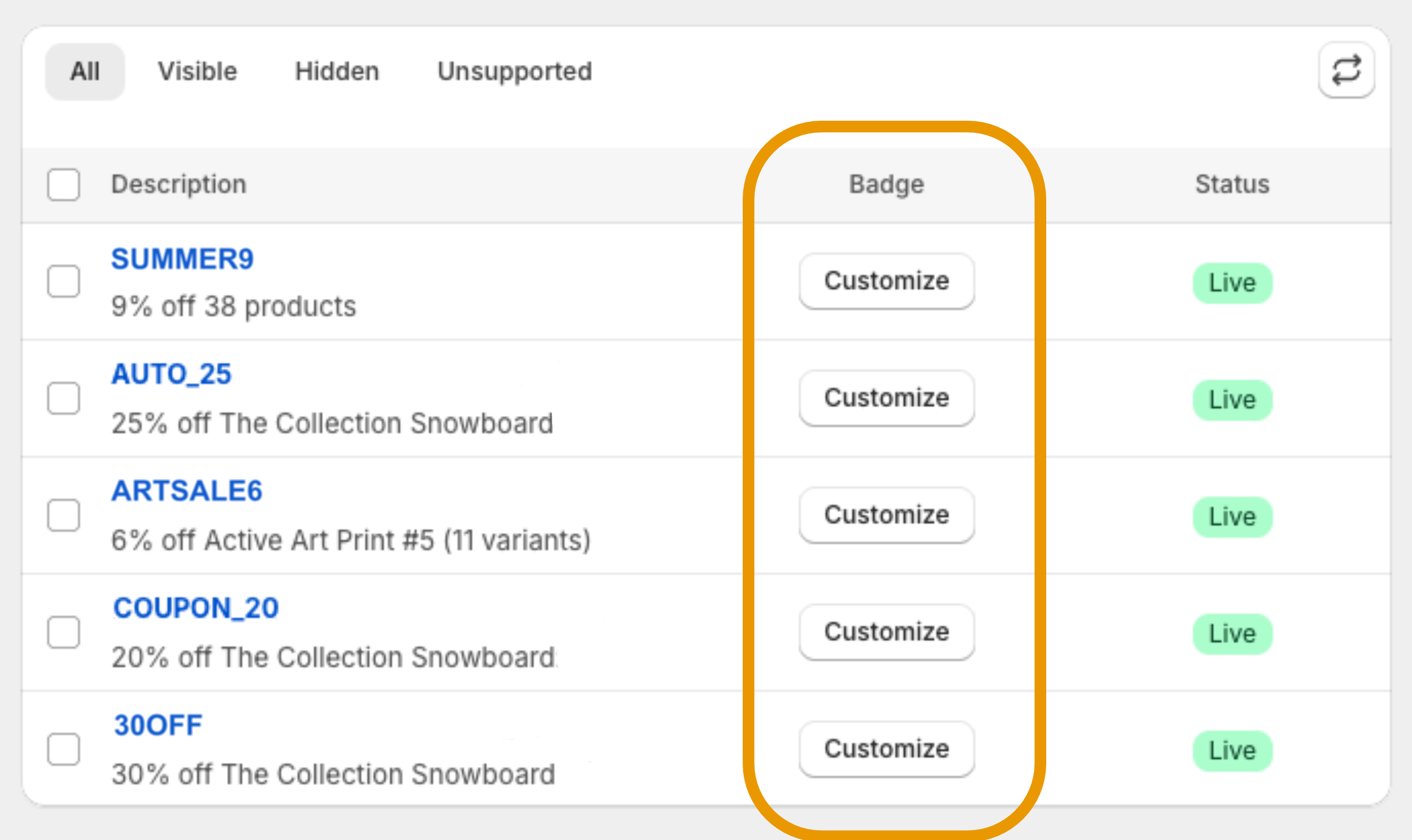
After clicking Customize, a popup will open where you can edit that discount’s individual badge settings.
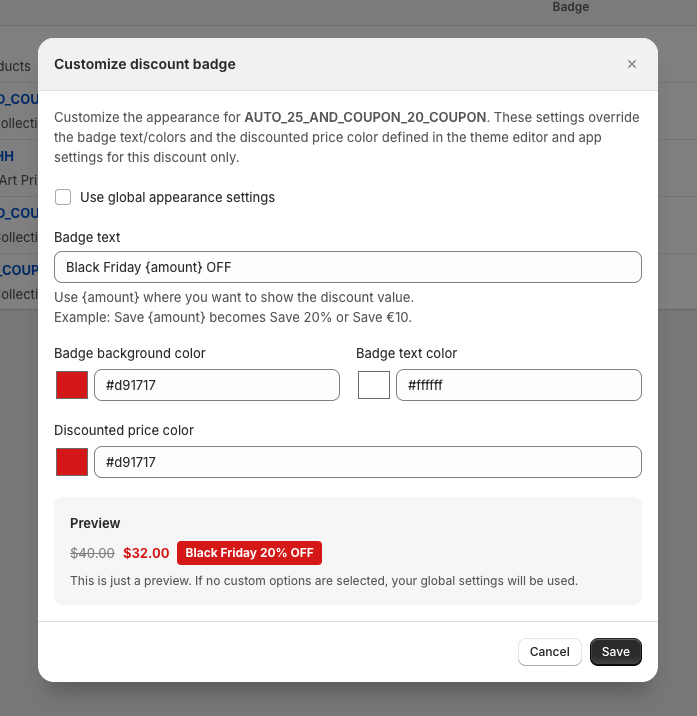
Use global appearance settings
At the top of the customization popup, you’ll see the option:
Use global appearance settings
When this option is enabled, the discount will use your default global appearance settings instead of its own custom ones. In other words, the discount will follow the badge text and colors configured in your main app settings or theme editor.
If you want to give that discount its own custom appearance, simply disable this option and fill in the fields below.
This makes it easy to switch between:
- using your store-wide default appearance, or
- giving one specific discount its own message and style
Badge text
The Badge text field lets you choose the message shown inside the badge.
If you want the actual discount value to appear automatically, use the placeholder:{amount}
For example:
Save {amount}→ Save 20%Black Friday {amount} OFF→ Black Friday 20% OFFOnly today: {amount} OFF→ Only today: 20% OFF
This is especially useful if you want a more promotional message while still showing the real discount amount clearly.
If you do not include {amount} , the badge will display exactly the text you entered.
Badge colors
You can also control the visual style of the discount by choosing custom colors.
-
Badge background color
This controls the background color of the badge itself.
-
Badge text color
This controls the text color inside the badge.
-
Discounted price color
This controls the color used for the discounted price shown on the storefront.
These settings allow you to match different campaigns to different visual styles. For example, you might use:
- red for Black Friday promotions
- green for seasonal sales
- blue for back-to-school campaigns
Preview
The customization popup includes a preview area so you can quickly see how your badge and discounted price may look before saving.
The preview is meant to help you visualize your settings, but the final result may still vary slightly depending on your theme, layout, and where the discount is shown.
How it appears on your storefront
Once you save your changes, the custom badge settings will apply only to that specific discount.
That means you can keep your default appearance for most discounts, while highlighting selected promotions with a different message or color treatment.
For example, if your badge text is set to:
Black Friday {amount} OFF
and the discount amount is 20%, your storefront badge may appear as:
Black Friday 20% OFF

Important notes
- This feature is available on the Advanced plan only.
- Custom settings apply only to the selected discount.
- Other discounts will continue using your global appearance settings unless you customize them individually.
- If Use global appearance settings is enabled, the discount will ignore its individual custom fields and use your default appearance instead.
When to use per-discount customization
Per-discount customization is especially useful when you want to:
- highlight important campaigns like Black Friday or Summer Sale
- show different messaging for different promotions
- match the badge colors to a campaign theme
- make selected discounts more visible without changing your global setup
If you prefer a consistent style across your entire store, you can continue using only the global appearance settings.